Introduction
Overview of GroceryHub: 10 Minute Demo App | The Ultimate Multi Vendor Grocery Solution
GroceryHub: 10 Minute App is a complete Quicke Commerce & eCommerce multi-vendor grocery solution designed for seamless online shopping and efficient order management. With location-based ordering, a smart multi-cart system, and admin-controlled cart restrictions, GroceryHub: 10 Minute App ensures a smooth shopping experience. It features a flexible return system, multiple payment gateways, and diverse delivery options, including scheduled delivery, standard delivery, and self-pickup. Whether you're launching a grocery marketplace or optimizing operations, GroceryHub: 10 Minute App is your all-in-one eCommerce solution.
This documentation provides a clear overview of the entire system, summarizing the core processes for easy understanding. The platform includes an intuitive admin panel and landing page, designed for seamless use without any coding expertise. It also integrates multiple automated online payment gateways, simplifying global transactions effortlessly.
Thank you for choosing GroceryHub: 10 Minute App If you have any questions not covered in this documentation, please feel free to reach out to us via email(info@apksoftwaresolution.com). We’re here to assist and will respond as promptly as possible. Thank you again!
Server Requirements
All server requirements are stated bellow
The following server requirements outline the essential specifications for setting up and running the system efficiently. Meeting these requirements will ensure smooth operation, enhance performance, and support seamless functionality across all features. Please verify your server configuration aligns with these standards prior to installation.
- PHP Version 8.3
- MySQL Version 8.0+ or MariaDB version 10.6+
- BCMath PHP Extension
- Ctype PHP Extension
- cURL PHP Extension
- DOM PHP Extension
- Fileinfo PHP Extension
- GD PHP Extension
- JSON PHP Extension
- Mbstring PHP Extension
- OpenSSL PHP Extension
- PCRE PHP Extension
- PDO PHP Extension
- pdo_mysql PHP Extension
- Tokenizer PHP Extension
- XML PHP Extension
- Filter PHP Extension
- Hash PHP Extension
- Session PHP Extension
- Zip PHP Extension
- allow_url_fopen()
- file_get_contents()
Installation
Application installation process
Installation is straight forward and can be completed in a few simple steps. Our setup process is designed to be seamless and efficient, ensuring a smooth start
Installation Steps:
-
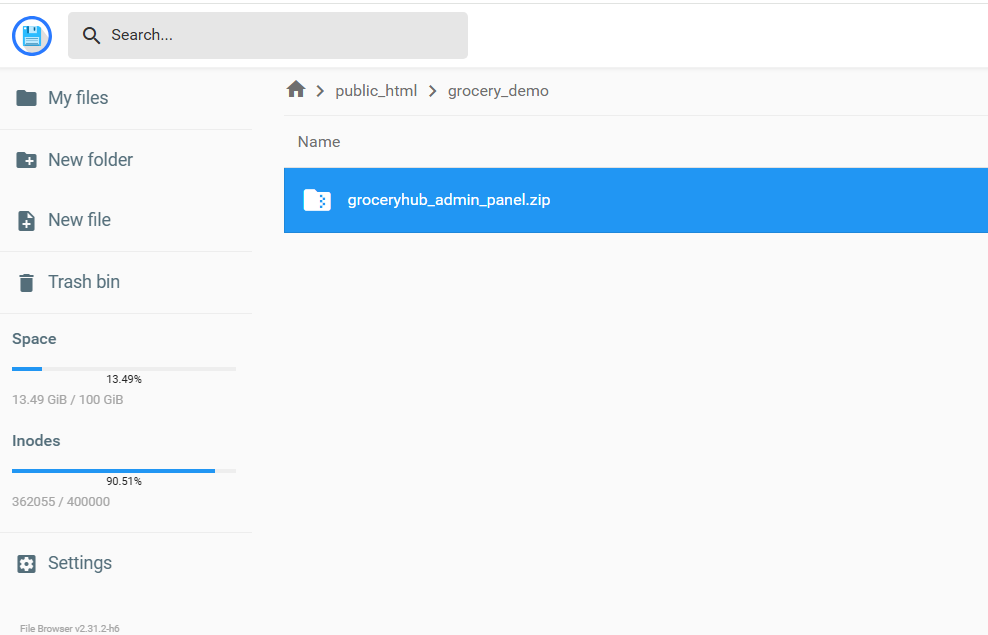
Upload the groceryhub_admin_panel.zip file directly to your server after
purchase to
begin setup.
-
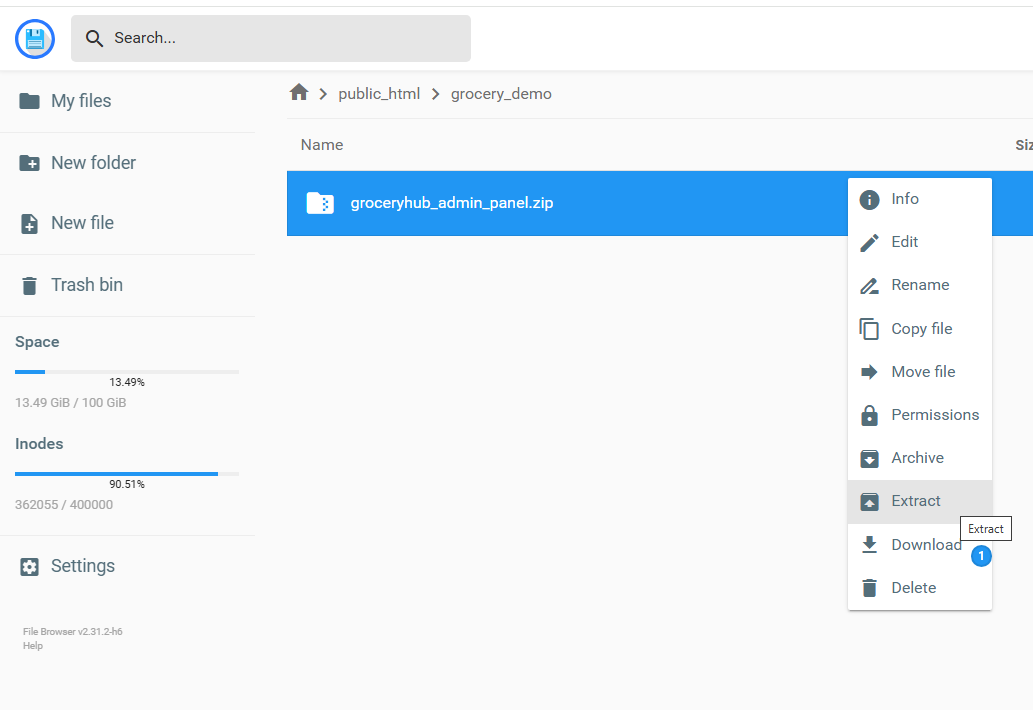
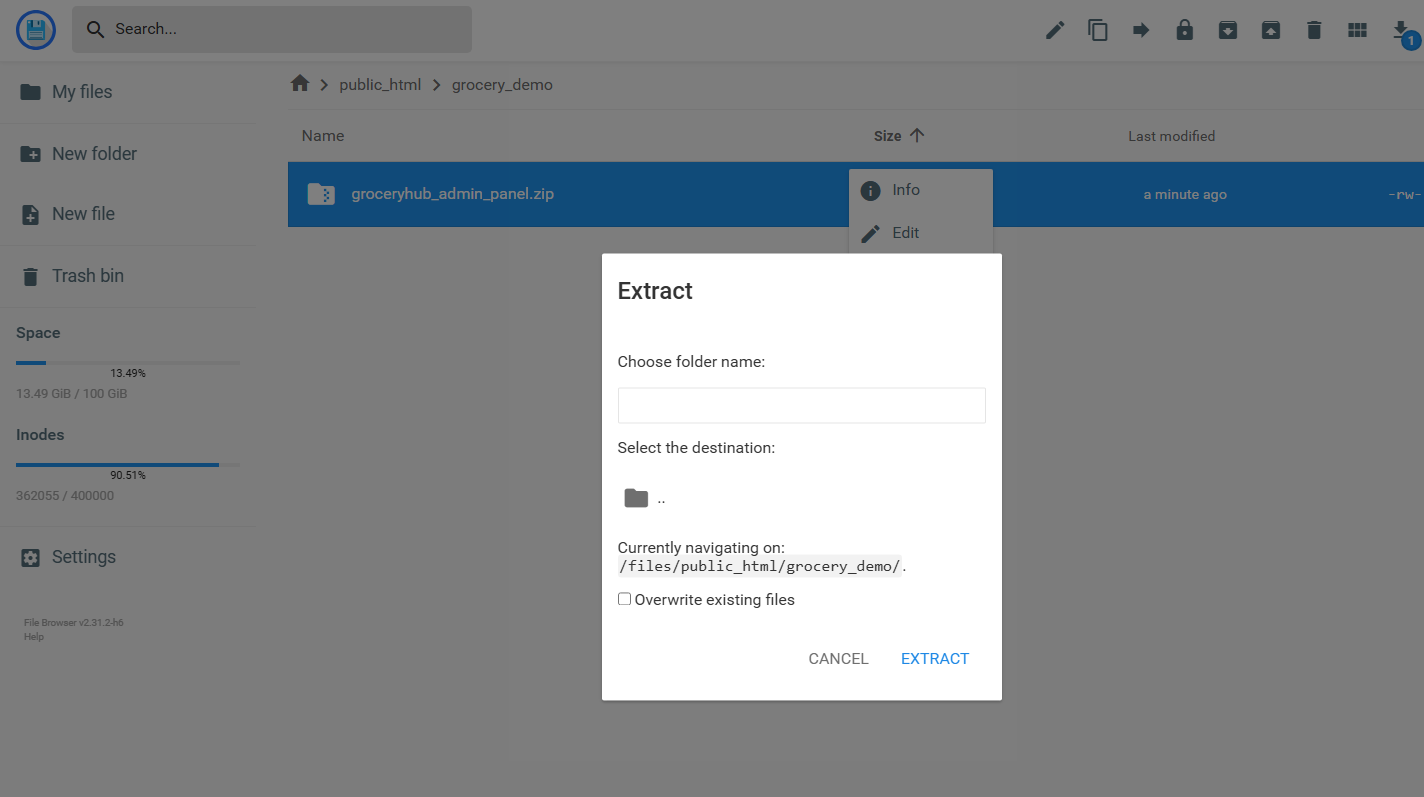
Extract the downloaded file and move all contents from thezip file
to your desired installation directory. Ensure all files moved
successfully.
-
Quickly set up your database using the
Database Managementin your control panel.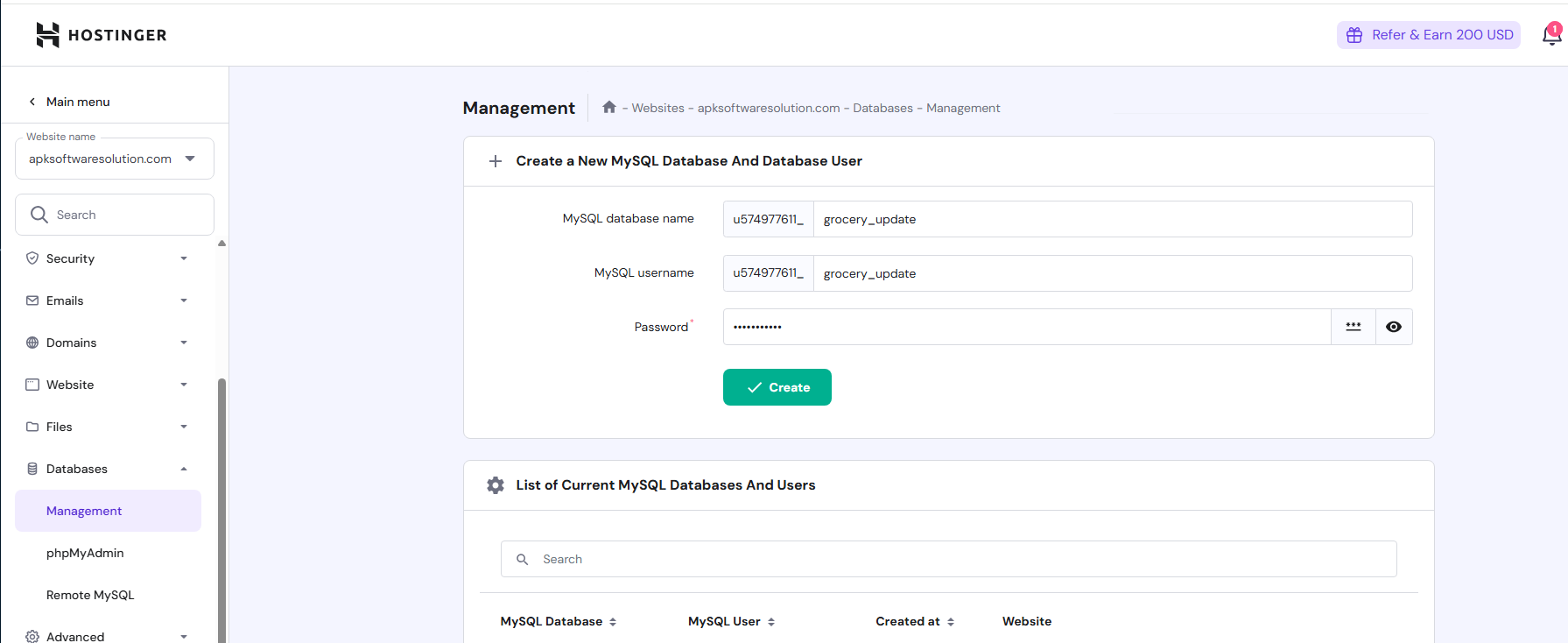
-
After creating the database, access
phpMyAdminon your server, select the newly created database, and import the project database from thegroceryhub-10-min-app-v1/databasefolder.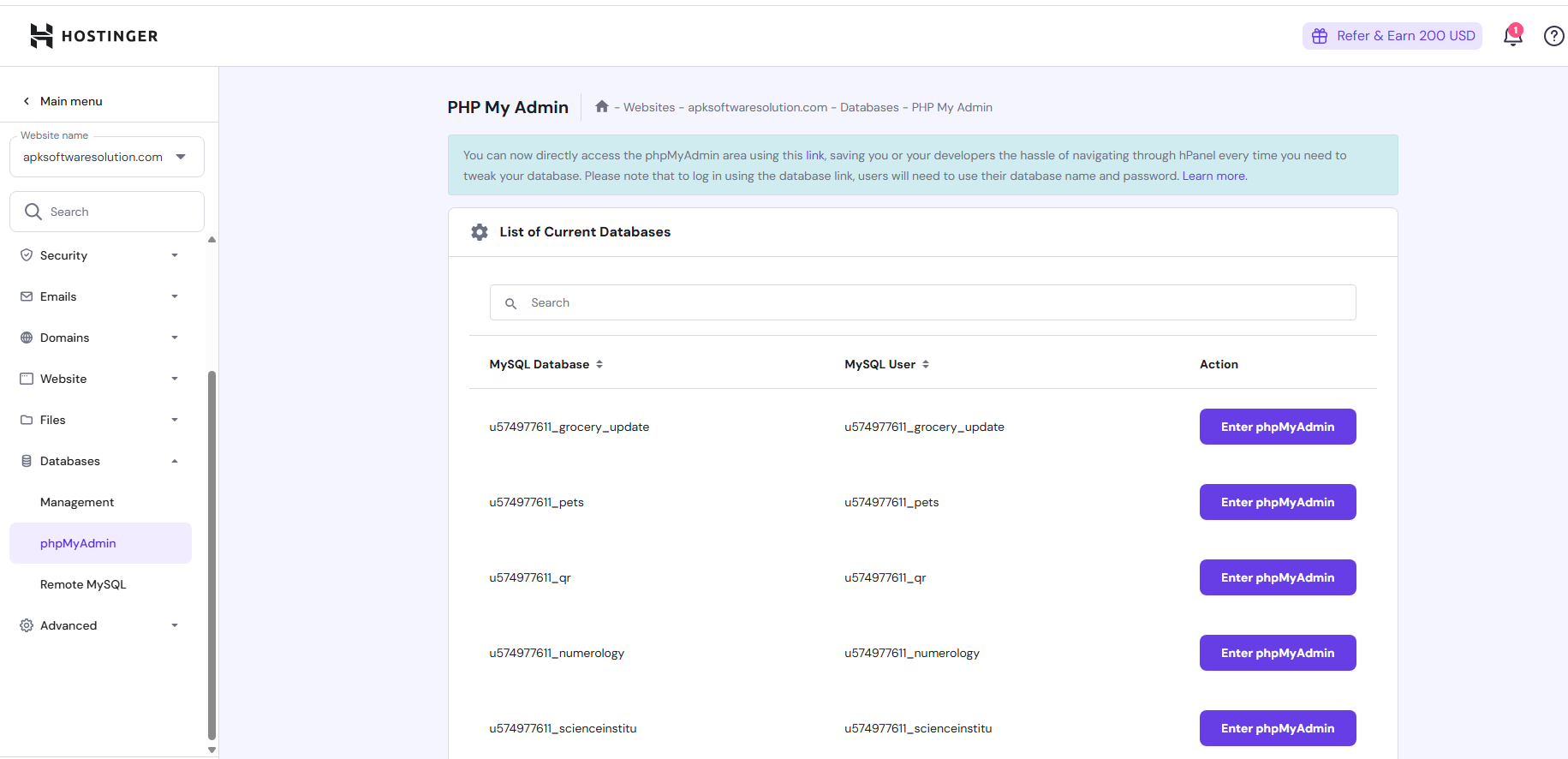
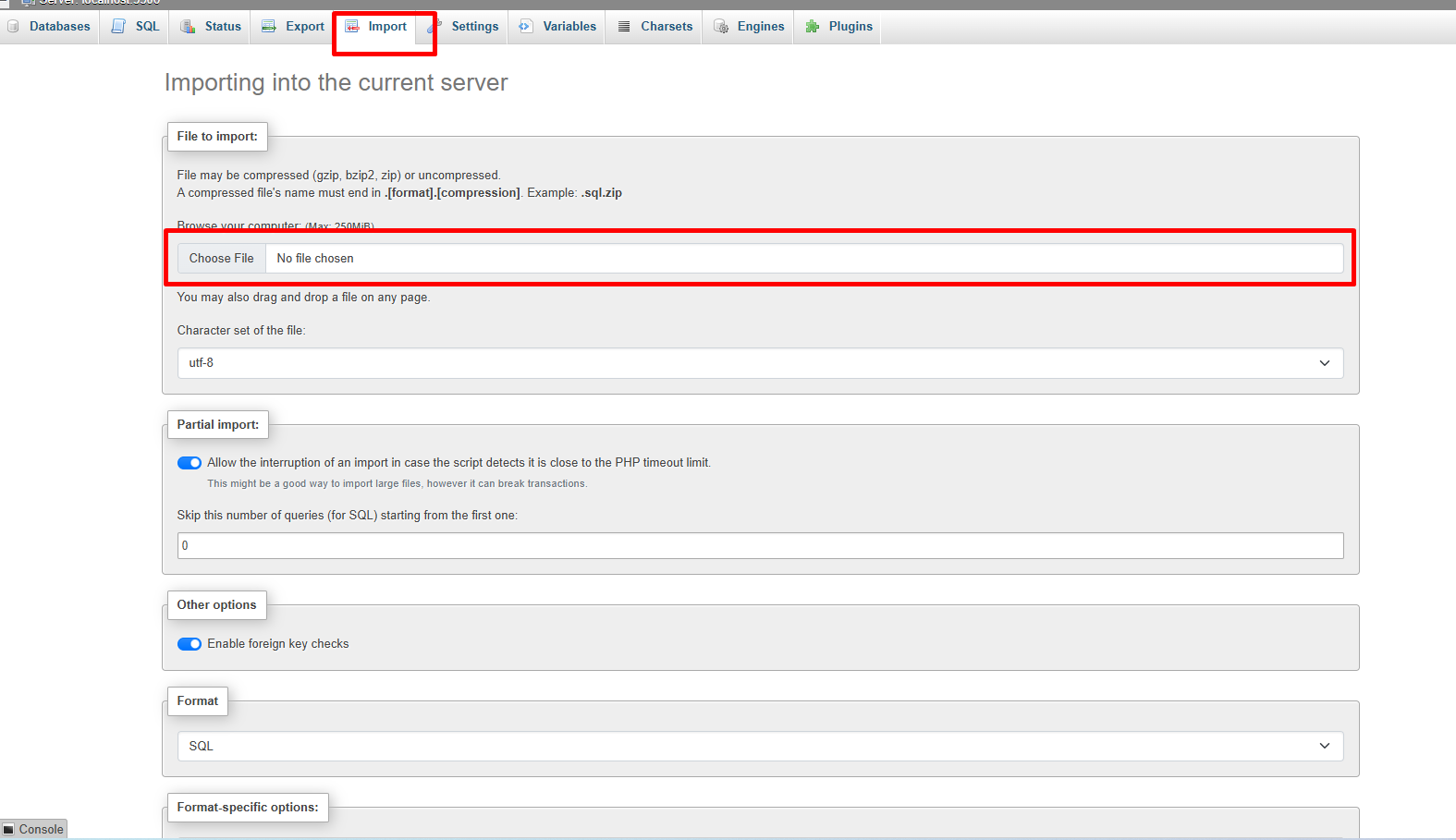
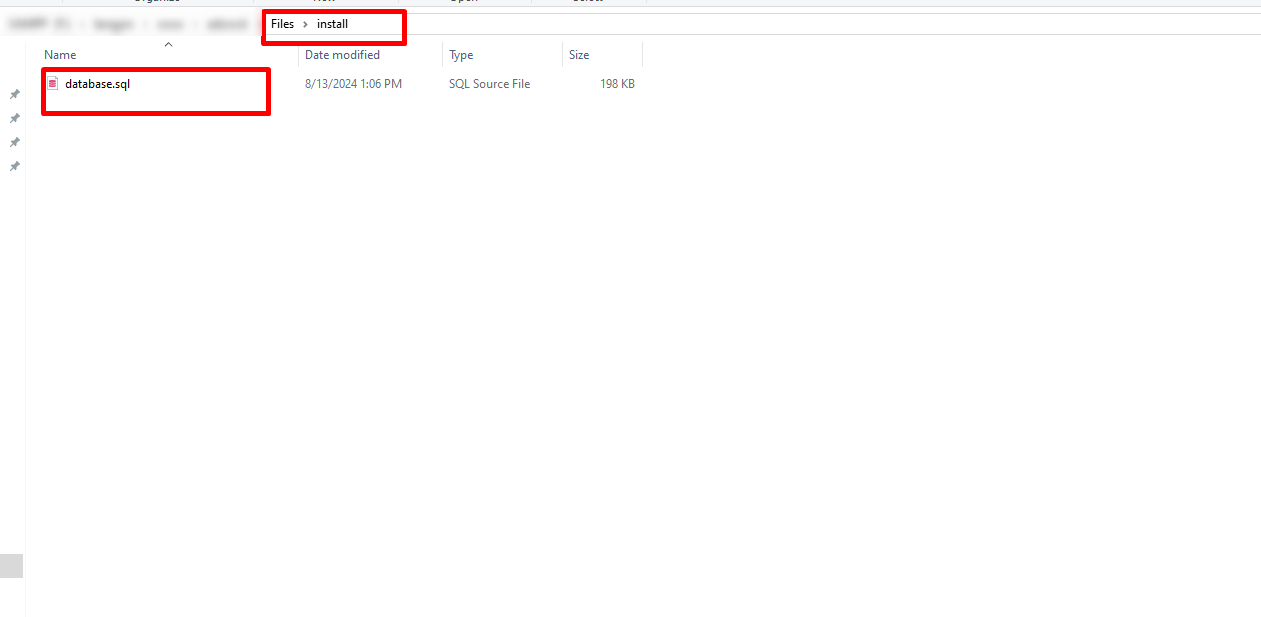
database.sqlalready contains everything of version 2.2, so this is the only file a new installation needs. Thedocumentation/updation_v2.1_to_v2.2folder is only for updating an existing v2.1 installation. -
Set your
Base URLanddatabase credentialsin the.envfile in thegroceryhub-10-min-app-v1/groceryhub_admin_panelfolder (the folder that containsapp,publicandspark). If the file is not there, create a new file with exactly that name. File names that start with a dot are hidden in many file managers, so turn on Show hidden files if you can't see it.CI_ENVIRONMENT = production app.baseURL = 'https://yourdomain.com/' database.default.hostname = localhost database.default.database = your_database_name database.default.username = your_database_user database.default.password = your_database_password database.default.DBDriver = MySQLi database.default.port = 3306-
app.baseURLis your site address. Start it withhttps://and end it with/. -
If your database password contains a space or a
#, put it in single quotes. -
Do not change
app/Config/App.phporapp/Config/Database.php. They only hold placeholders; the real values are read from.env. -
Keep
CI_ENVIRONMENT = productionon the live server.developmentshows error details to visitors.
-
-
Live payments: all online payment gateways start in
test mode. When you are ready to take real payments, add this line to
.envand enter your live keys in Admin Panel → Payment Methods:payment.mode = live -
Add one cron job that runs every hour. It sends the
abandoned cart reminders and removes old activity log entries. Replace
/path/to/groceryhub_admin_panelwith the full path of the folder on your server (on Hostinger: hPanel → Advanced → Cron Jobs):0 * * * * cd /path/to/groceryhub_admin_panel && php spark store:cron >/dev/null 2>&1 -
Installation is almost complete. Your Site is now ready
to browse.
Simply visit
http://yordomain.com(Currently website dosent show anything, necessory settiing need to update from admin panel) and admin panel is ready athttp://yordomain.com/admin/auth/loginlog in with the credentials below- username:admin@gmail.com
- password:demo1234
http://yordomain.com/seller/auth/login -
After logging in, please change the password for security. Once the project is successfully installed.
-
We strongly recommendat you after successfully installation goto Admin panel tab of this Documentaion. Update all necessary setting there to run Website smoothly
Folder Structure
Important details about the application folder structure
After installation, your main folder will contain below files, its essential for the proper functioning of the application.
- app
- public
- resources
- system
- vendor
- writable
- .env
- .htaccess
- package.json
- package-lock.json
- spark
-
In the
public/assetsfolder, you'll find all the necessary assets such as CSS, JS, and images. The two Tailwind CSS files,public/assets/admin/css/admin.cssandpublic/assets/website/css/tailwind.css, are built from theresourcesfolder: don't edit them by hand, see Change the Design (CSS). -
The
appfolder contains the CI4 files, maintaining the full MVC structure of the project for seamless functionality and organization. -
The
writable/logsfolder contains the log files. If any error occures you can find error logs here. -
The
.envfile holds your Base URL, database credentials and live payment switch. Never share it: it contains your database password. -
The
systemfolder is the CodeIgniter framework andvendorholds the PHP libraries (PDF, payment gateways, Google).sparkruns the hourly cron job. -
The
resourcesfolder,package.jsonandpackage-lock.jsonare only needed to change the design on your own computer (see Change the Design (CSS)). You don't need to upload them to your server.
Change the Design (CSS)
Rebuild the CSS after changing the look of the panels or the website
Optional: you only need this if you want to change the look of the Admin Panel, Seller Panel or Website. It is not needed to install or run the site, and your server does not need Node.js.
The Admin Panel, Seller Panel and Website are styled with Tailwind CSS. The package already contains the built CSS files:
-
public/assets/admin/css/admin.css: Admin Panel and Seller Panel, built fromresources/admin/ -
public/assets/website/css/tailwind.css: Website, built fromresources/website/
Rebuild them when you add or change Tailwind classes in the views
(app/Views) or page scripts, or when you edit the files in
resources. A Tailwind class that the build has not seen
before has no style until you rebuild.
Steps (on your own computer):
-
1️⃣ Install Node.js: install Node.js 22 or
newer from
nodejs.org. Check it with:node -v -
2️⃣ Install the build tools: open a terminal in the
groceryhub_admin_panelfolder and run:
This creates thenpm installnode_modulesfolder frompackage.jsonandpackage-lock.json. You only need to do it once.node_modulesis not included in the package; don't upload it to your server. -
3️⃣ Make your changes in the views
(
app/Views) or inresources. -
4️⃣ Build the CSS:
-
Admin Panel or Seller Panel:
This writesnpm run build:csspublic/assets/admin/css/admin.css. While you are working on the panels,npm run watch:cssrebuilds it every time you save a file. -
Website:
This writesnpm run build:website-csspublic/assets/website/css/tailwind.css.
-
Admin Panel or Seller Panel:
- 5️⃣ Upload the built file to the same place on your server, together with the views you changed. Visitors get the new file right away: its link carries a version number that changes with the file.
-
Important:
✓ Don't editadmin.cssortailwind.cssby hand: the next build overwrites them. Put your changes inresourcesor in the views.
✓ The Admin and Seller Panels include only the icons they already use. An icon that is not used anywhere yet shows blank; contact support to add new icons.
Support
How to get assistance
Thank you for purchasing our product! For any support or assistance, feel free to reach out to us via the provided email address. Our dedicated support team is available 24/7, ready to help with any questions, technical issues, or inquiries you may have. We are committed to providing prompt and reliable assistance to ensure a seamless experience with our product. Your satisfaction is our priority, and we are here to support you every step of the way.